

 IV

Manual Costs
Enter what you spent on a campaign for a day yourself.
This page shows you how to enter a campaign's spend for a day yourself, so its Cost, Profit, and ROI match what your traffic source charged.
Use a manual cost when your traffic source has no cost sync and can't send a cost in the campaign URL, when you bought a flat-fee placement, or when the cost Proferex has for a day is wrong. Proferex shares the amount equally among the campaign's visits on that day.
Open Manual Costs
Go to Tracker → Tracker Settings and open the Manual Costs tab. It lists every manual cost you have saved, newest day first. Pick a campaign in All campaigns to see only its days.
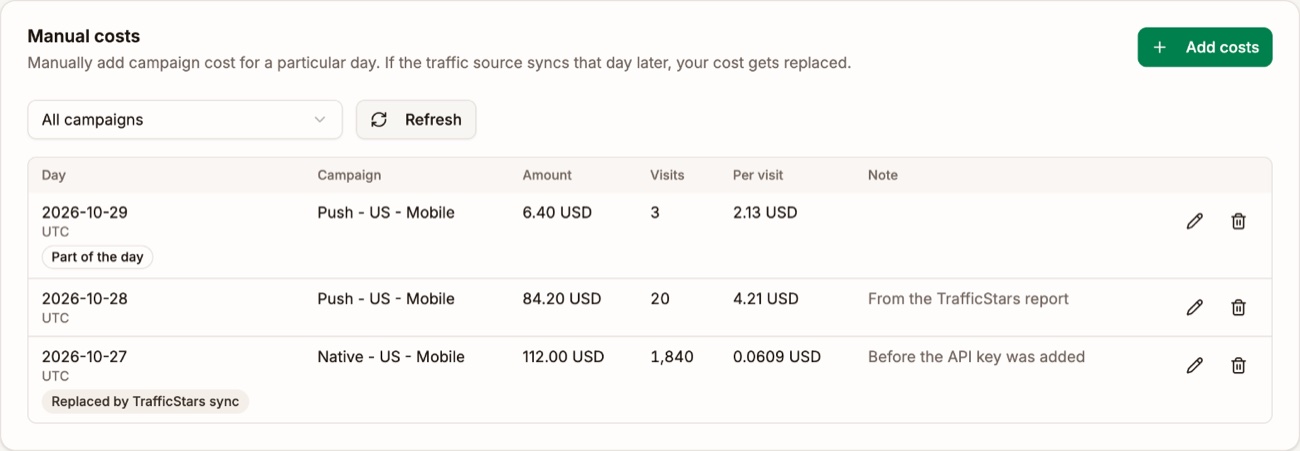
| Column | What it shows |
|---|---|
| Day | The day the cost covers, and its timezone |
| Amount | What you entered, in the currency you entered it in |
| Visits | How many of the campaign's visits that day share the cost |
| Per visit | The amount divided by the visits |
| Note | Your own note, such as where the figure came from |
Two tags can appear under the day:
- Part of the day means you saved the cost during that day. It covers the visits up to the moment you saved.
- Replaced by your traffic source's name means cost sync pulled that day again after you saved, so its figure is used. Save the day again to use yours.
Add a cost for one day
Click Add costs and stay on One cost.
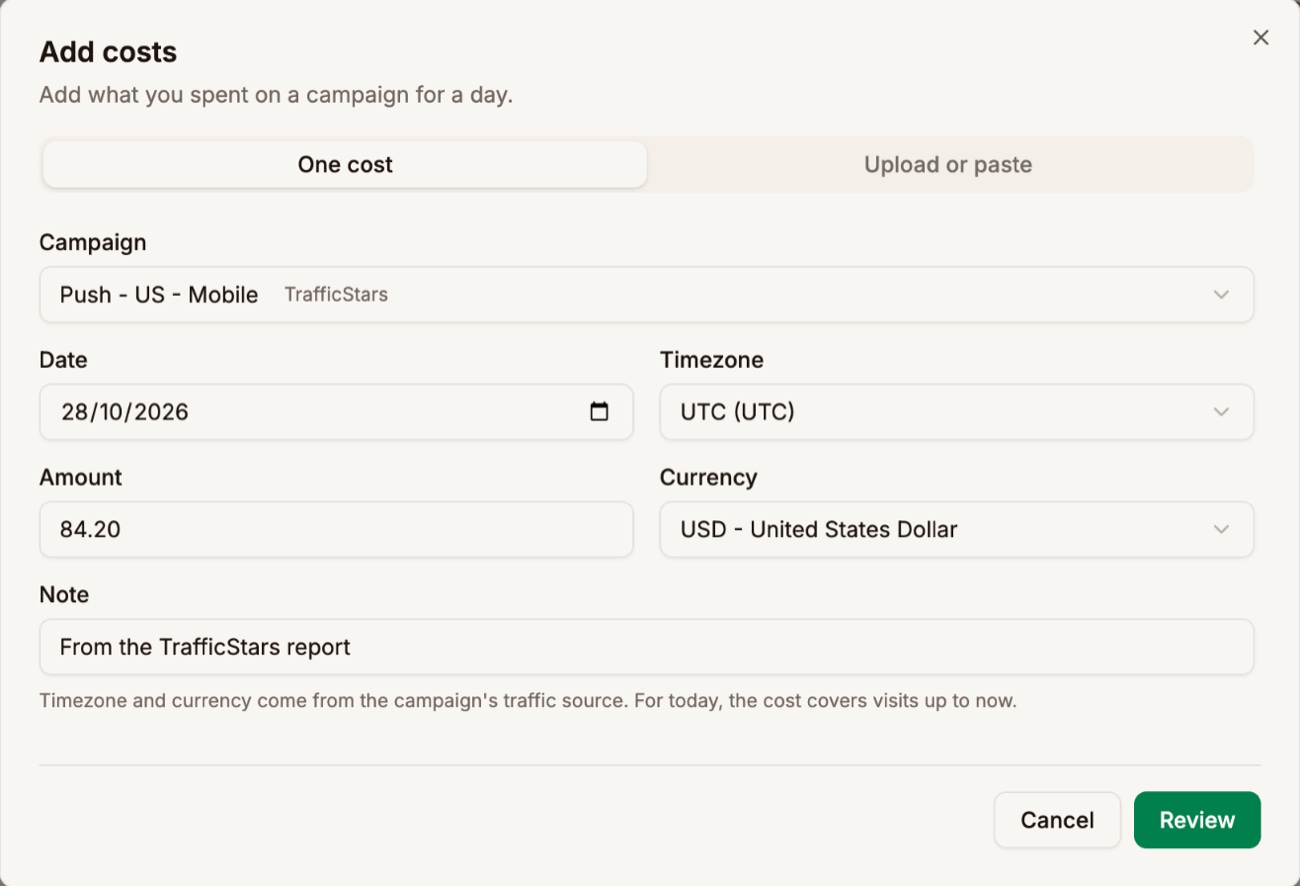
| Field | What to enter |
|---|---|
| Campaign | The campaign the spend is for. Type to search. |
| Date | The day you spent it. |
| Timezone | Fills in with your traffic source's timezone, so the day matches its report. UTC if the traffic source has none. |
| Amount | What you spent that day. |
| Currency | Fills in with your traffic source's currency. |
| Note | Optional. Where the figure came from, for example. |
Click Review. The review shows how many visits the day has and what each visit will cost. Click Save 1 cost to save it.
The day's timezone matters. TrafficJunky and ExoClick report their days in New York time, and TrafficStars in UTC. Use the same timezone as the report you copy the figure from, or the cost lands on the wrong hours.
Add many days from a file or a paste
Use Upload or paste to add up to 100 days at once, across any of your campaigns. Click Choose CSV file, or paste rows straight from a spreadsheet. Download template gives you a file with the right columns.
campaign,date,amount,currency,timezone,note
Push - US - Mobile,2026-10-27,84.20,USD,America/New_York,From the TrafficStars report
x4g7rwhe,2026-10-27,12.5,,,| Column | What it holds | When it's empty |
|---|---|---|
campaign | The campaign's name, its short ID, or its full ID. Required. | The row is refused |
date | The day, such as 2026-10-27. Required. | The row is refused |
amount | What you spent, such as 84.20. Required. | The row is refused |
currency | A three-letter code, such as USD | The traffic source's currency |
timezone | A timezone, such as America/New_York or UTC | The traffic source's timezone |
note | Anything you want to remember | No note |
The first row must name the columns. cost and spend also work for the amount, and day for the date. If two campaigns share a name, use the short ID instead.
Review before saving
Review checks every row before anything is saved.
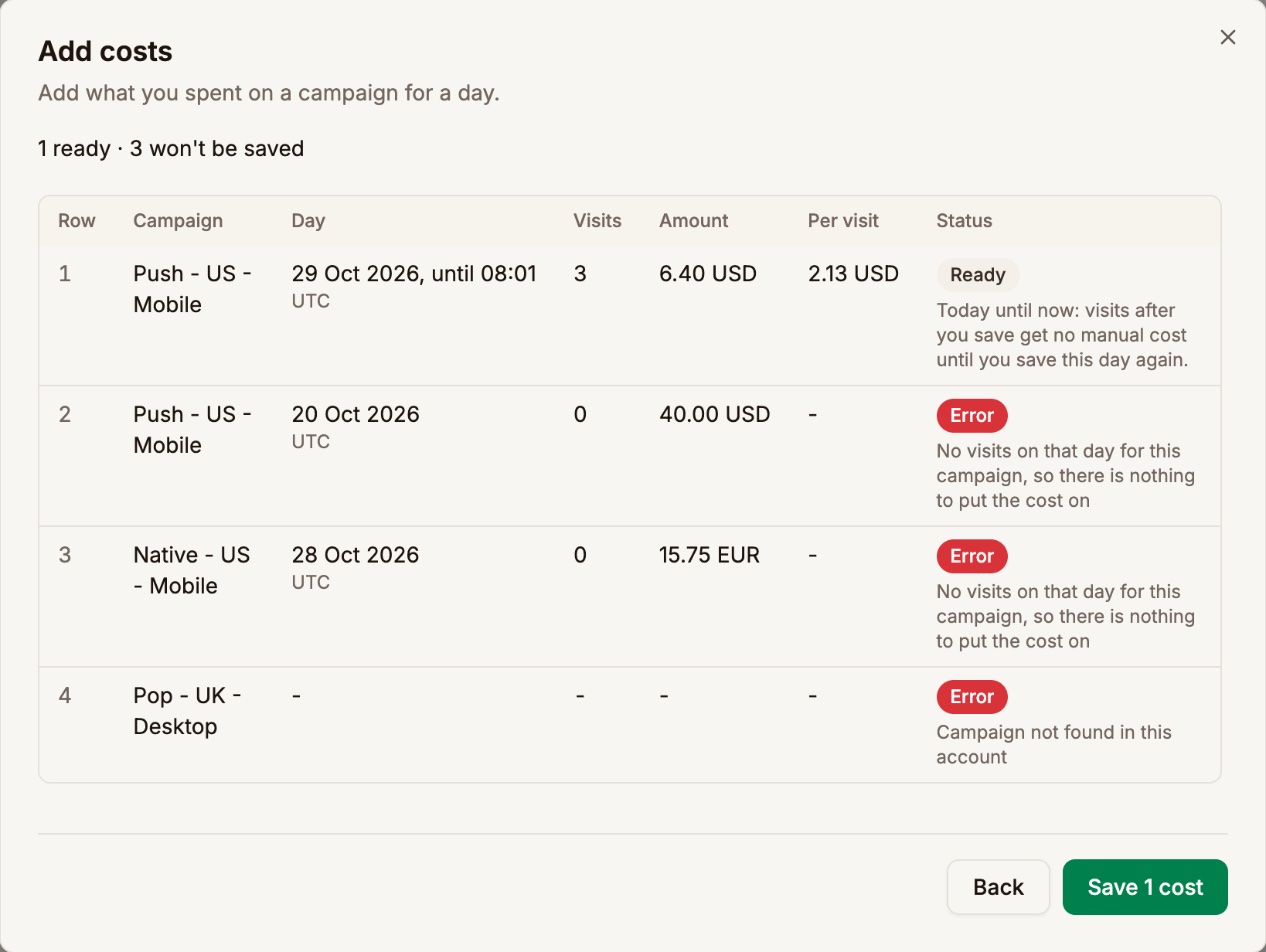
A row won't be saved when:
- The day has no visits for that campaign. There is nothing to put the cost on.
- The campaign isn't found, or two campaigns share the name.
- The day hasn't started yet in the timezone you picked.
- There's no exchange rate yet for that day's currency. Try again later.
- It overlaps another day you saved for the campaign in a different timezone. Keep one timezone per campaign.
A row is ready, with a note, when it replaces a cost you saved before for the same day, or when it replaces synced spend.
Today until now
You can save a cost for today. It covers today's visits up to the moment you save. Visits after that get no manual cost, so save the day again when it's over, with the full amount, to cover the whole day.
How manual costs and cost sync work together
Each campaign has one cost per day. Saving the same campaign and day again replaces it.
When a campaign also has cost sync, whichever figure arrived last wins:
- You save a cost after the sync. Your figure is used.
- The sync pulls that day again after you saved. The synced figure is used, and your cost is tagged Replaced by the traffic source. Save the day again to use yours.
Cost sync pulls today every 15 minutes, so a manual cost for today on a synced campaign only lasts until the next sync. For past days the sync runs once more early the next morning, then stops. A manual cost for an older day stays.
A manual cost also replaces the cost from the campaign URL, and the Static CPC or Static CPA, for the visits it covers. On a CPA campaign, the conversions from those visits add no CPA charge on top. See Costs.
Reports pick up a new or changed cost within a minute.
Edit or delete a cost
Click the pencil on a row to change its amount, currency, timezone, or note. Click the trash icon and confirm to delete it. Its visits go back to their normal cost: the synced cost, the cost in the campaign URL, or the static cost.
Add costs with your AI app
Agent Chat and your connected AI app can enter costs for you. Paste the spend from your traffic source's report and ask, for example: "Set yesterday's cost for Push - US - Mobile to $84.20." It can also list your manual costs and delete one.
The assistant checks the rows first and tells you what will happen. Nothing is saved until you confirm. See Agent Chat and Connect Your AI App with MCP.
Next step
Compare yesterday's Cost on your campaign with the spend in your traffic source account, and add a manual cost for any day that doesn't match.